How to Start Streaming Esports: Equipment, Platforms, and Audience Growth
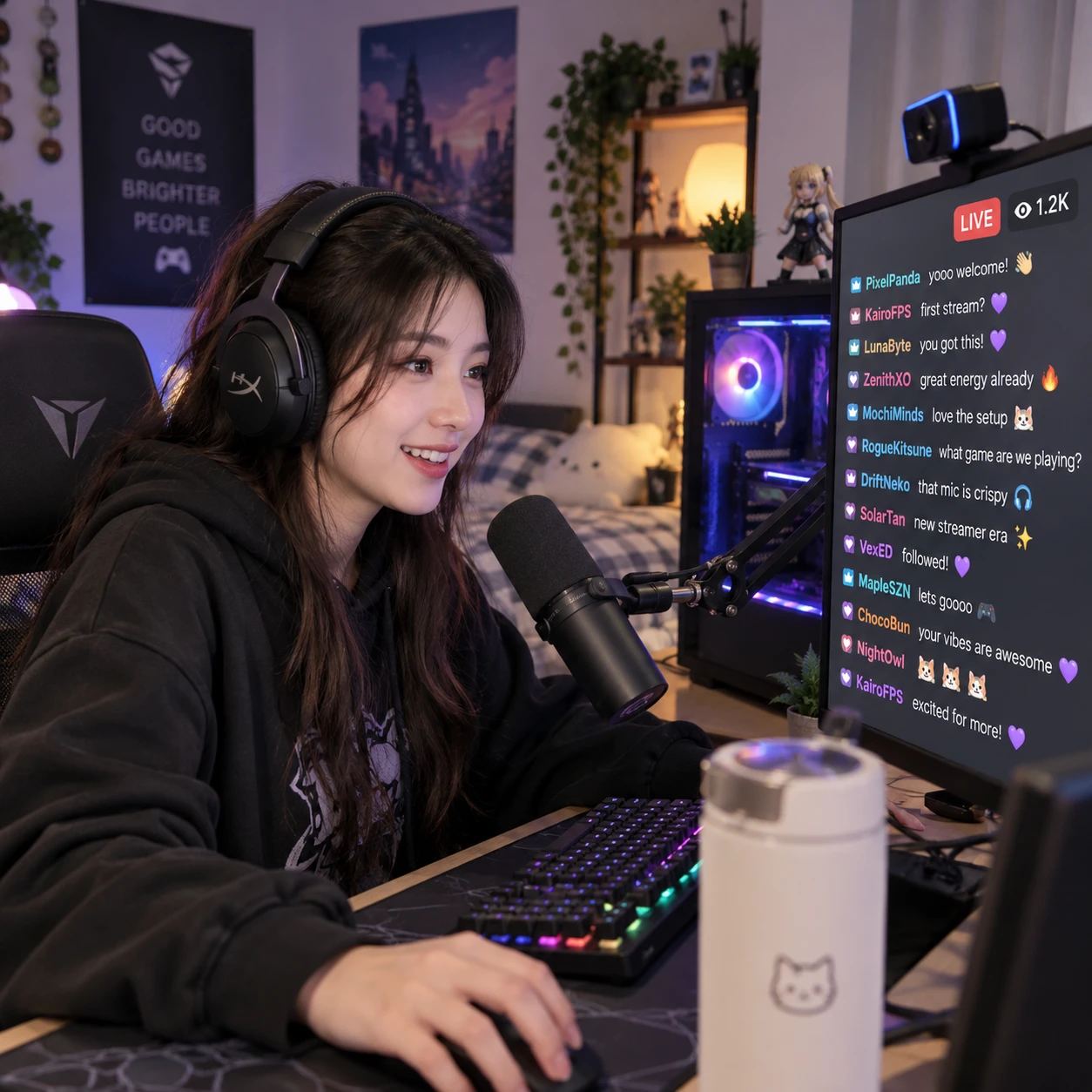
Starting an esports stream does not require a professional studio or a top-end gaming PC. You need a game you can talk about with confidence, a reliable way to capture it, clear audio, and a format that gives viewers a reason to stay.
From football esports to competitive shooters and strategy games, the basics are similar. Choose a suitable platform, test your setup before going live, and build a schedule you can maintain. Audience growth takes time, so focus first on making each broadcast enjoyable and dependable.
Choose your game and define your stream
Choose an esports game you enjoy enough to play and discuss regularly, then give your stream a clear focus. A specific format helps viewers understand what they will get when they click in.
Start by considering three things: your interest, your experience, and the game’s audience. You might stream ranked matches in EA SPORTS FC, explain football tactics through gameplay, compete in a team-based game, or follow a tournament and discuss key moments. You do not need to be a top-ranked player; useful commentary, a friendly community, or a distinctive challenge can also make a stream worth watching.
Write a one-sentence description before you set up. For example: “I play weekend FC tournaments and explain how I adjust tactics when I’m behind.” This gives you a practical filter for decisions about titles, overlays, clips, and schedule.
- Gameplay-focused: Emphasize matches, practice, ranked progression, or a challenge.
- Commentary-focused: Explain decisions, tactics, team news, or esports storylines.
- Community-focused: Invite viewers to join games, discuss fixtures, or share predictions.
Check the game’s streaming and tournament rules early. Organizers may restrict broadcast rights, delay requirements, co-streaming, or the use of tournament footage. A game’s rules and an event’s rules can differ, so confirm both before you promote a live tournament watchalong.
Build a beginner-friendly streaming setup
A beginner-friendly esports streaming setup needs a device that can run the game, a microphone, headphones, and a stable internet connection. A webcam and lighting are useful additions, but they are not essential for a first broadcast.
Your streaming PC or console should handle the game and capture or broadcast software without disrupting play. If you already own a gaming PC, test it before buying upgrades. Lowering game graphics or stream resolution may be enough to avoid performance problems. Console players can often stream directly through platform features or connect a capture card to a computer for more control.
Prioritize sound. A basic USB microphone placed close to your mouth usually produces clearer commentary than a distant built-in laptop mic. Use a headset to hear game audio and prevent speakers from feeding sound back into the microphone. Set game volume low enough that your voice remains easy to follow.
A webcam helps viewers connect with the person behind the gameplay, but it is optional. If you use one, face a window or place a lamp in front of you; lighting from behind can leave your face in shadow. Avoid buying an elaborate lighting kit until you know you want a camera in your regular setup.
Check your internet upload speed using a speed test, then leave room for other devices and connection fluctuations. Streaming platforms publish current recommended settings, and requirements vary by resolution and service. A wired Ethernet connection is generally more stable than Wi-Fi. If your upload speed or connection is inconsistent, reduce bitrate or resolution rather than risking a choppy broadcast.
For a first stream, spend on reliability before decoration: a working microphone, stable connection, and comfortable headset matter more than a costly webcam or animated overlays.
Set up your software and streaming platform
Use OBS Studio to capture your game, microphone, and optional webcam, then choose Twitch or YouTube Live based on how you want viewers to find and watch your streams. Both platforms can work for esports; each has different discovery and viewing features.
In OBS Studio, create a scene and add the sources you need: game capture, microphone input, desktop or game audio, and webcam if you use one. Keep your first layout simple. A small name or social handle is enough; crowded graphics can obscure the match and distract from commentary.
Connect OBS to your streaming account using the platform’s setup instructions. Select a video resolution and bitrate that your computer and upload connection can sustain. Run a short private or unlisted test where available, and watch the recording for dropped frames, delayed audio, or an unreadable layout.
- Twitch is built around live channels, chat, and gaming communities. It can suit streamers who want to develop a regular live presence, though getting discovered among many channels can take work.
- YouTube Live connects livestreams with a broader video library, so highlights and edited guides can sit alongside broadcasts. Its discovery and channel tools differ from Twitch, and results depend on content and audience behavior.
Choose one platform to learn first instead of splitting attention across several services. Compare the current platform rules, monetization eligibility, moderation tools, and music policies before broadcasting. Features and requirements can change, so rely on each service’s official documentation when configuring your channel.
Prepare for a smooth first broadcast
Prepare for your first esports broadcast by checking audio, video, stream settings, and permissions before you go live. A short rehearsal catches problems that are easy to miss while playing.
Use this pre-stream check, ideally with a five-minute test recording:
- Confirm the game appears in the correct scene and runs smoothly.
- Speak at your normal volume and listen back for distortion, echo, or background noise.
- Balance voice and game audio so neither masks the other.
- Check that the webcam, lighting, overlays, and text are clear at the selected resolution.
- Verify the stream title, category, privacy setting, and chat controls.
- Close private messages, sensitive desktop windows, and notifications that should not appear on stream.
Set expectations you can meet rather than chasing the highest available resolution. A stable, watchable stream is better than a sharper broadcast that drops frames. If your PC struggles, test a lower resolution or frame rate and check the recording before changing several settings at once.
Esports broadcasts also carry rights and conduct responsibilities. Review the game’s rules, tournament policies, and platform terms, especially for official matches, co-streams, music, and rebroadcasts. Never assume that publicly viewable tournament footage is automatically free to restream.
Grow an audience and keep viewers engaged
Grow an esports audience by making your stream easy to understand, keeping a sustainable schedule, and giving viewers reasons to return. No schedule or promotion method guarantees growth, but consistency helps people know when to find you.
Pick a realistic schedule, such as two fixed evenings a week, and publish it on your channel. A shorter stream you can maintain is more useful than an ambitious daily plan that leads to burnout. Tell viewers what each session offers: a ranked climb, a tournament review, a football tactics experiment, or community games.
Talk through decisions even when chat is quiet. Explain why you changed formation, how you approach a difficult matchup, or what you are practicing. When viewers do join, greet them naturally and ask questions they can answer without interrupting the game. For example, ask whether they would press high or protect a lead.
Use chat moderation from the beginning. Set clear community rules, learn the platform’s moderation controls, and consider trusted moderators if chat becomes busy. Filters and slow mode can help manage spam, but strict controls may also make a small community feel less welcoming, so adjust them to the room.
Turn strong moments into short clips or useful highlights. A clear clip can reach people who do not watch a full live session, while a brief tactical explanation may show your channel’s character better than a random gameplay montage. Share clips where your intended audience spends time, follow each site’s rules, and avoid flooding communities with self-promotion.
Track progress and improve over time
Improve an esports stream by reviewing a small set of channel signals and changing one thing at a time. Viewer growth is uneven, so use feedback to make the broadcast clearer and more enjoyable rather than treating any single metric as a verdict.
After each stream, note what worked and what caused friction. Review the recording for audio balance, dead air, scene changes, and moments where commentary helped explain the game. Check platform analytics for patterns such as average watch time, chat activity, returning viewers, and which clips attract attention. These figures describe behavior; they do not explain every reason behind it.
Use a simple improvement loop: notice, test, review. If viewers leave during long queues, try discussing tactics or upcoming matches while you wait. If chat cannot hear your voice clearly, adjust microphone placement and levels before buying new equipment. Keep the change for a few broadcasts so you can judge it fairly.
Do not overhaul your channel after one quiet session. Small audiences are normal at the start, and games, time slots, and competition all affect who finds a stream. Protect your enjoyment and routine, follow tournament and platform rules, and let each broadcast teach you something practical.
Frequently asked questions
Can you start streaming esports with a console? Yes. Many consoles offer built-in broadcasting, while a capture card and computer can provide more control over scenes and audio. Check the console, game, and platform requirements.
What equipment do you need for a first stream? A gaming PC or console, a microphone or headset, a stable internet connection, and streaming software or a console broadcast feature are the core items. A webcam and dedicated lighting are optional.
Is Twitch or YouTube Live better for esports streaming? Twitch centers on live streaming and chat communities; YouTube Live can connect broadcasts with videos and highlights on the same channel. Choose based on your content plans and where your intended viewers watch.
How often should you stream? Choose a schedule you can maintain, even if that means one or two sessions per week. Predictability is more useful than committing to a frequency that quickly becomes unsustainable.
Can you stream esports tournaments? Sometimes, but permission depends on the tournament organizer, game publisher, and platform rules. Check for restrictions on co-streaming, restreaming, delay, and footage before going live.